Blog
MyPostShare Studio Dashboard: connect accounts, publish posts, and use the Studio API token
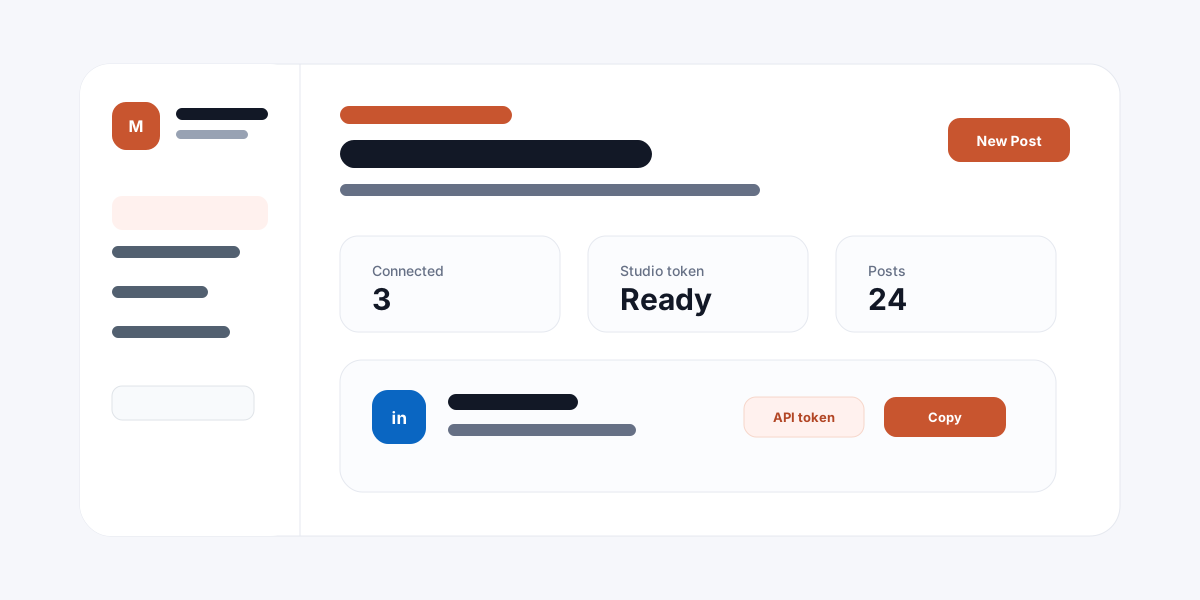
The MyPostShare Studio Dashboard is the user-facing workspace for people who want to connect their own social accounts, publish posts from a clean interface, and use a ready API token for direct posting from scripts, automation tools, or internal workflows.
What the Studio Dashboard is built for
MyPostShare has two main experiences. The developer dashboard is for teams that build apps, configure API keys, manage redirect URLs, and set provider credentials. Studio is different. Studio is for the person who wants to sign in, connect social accounts, publish content, and keep their own posting workflow simple.
That distinction matters because many users do not need the full developer console. They need a focused workspace where connected accounts, post creation, delivery status, and a direct posting API token are easy to find. Studio gives them that path without exposing unnecessary admin configuration.
- Studio is for user-level account connection and publishing
- The developer dashboard is for app setup, customer API keys, and platform configuration
- Studio API tokens are for posting to the signed-in user account only
How Studio account connection works
The first step in Studio is connecting social accounts. A user opens the Connections page, chooses a supported platform, and goes through the hosted OAuth flow. MyPostShare handles the provider redirect, token exchange, and connection record so the user can return to Studio with a usable account connection.
Once an account is connected, Studio shows the platform status and the connected username when the provider returns one. That gives the user confidence that posts will go to the correct destination before they publish.
- Connections are created with hosted OAuth
- Supported platforms appear in one Studio workspace
- Connected accounts become available as post destinations
Publishing from the Studio interface
The Compose page is the fastest path for manual publishing. A user writes content, optionally adds media, selects connected platforms, and chooses whether to publish immediately or schedule the post for later.
This workflow is useful for founders, creators, marketing operators, and internal teams that want a simple posting surface without building their own tool. The same backend posting system is used behind the scenes, so Studio posts still produce delivery records and status visibility.
- Create one post and select connected destinations
- Publish immediately when the message is ready
- Schedule future posts when timing matters
- Review delivery status after the request is created
Using the Studio API token for direct posting
The API Keys tab in Studio is designed for users who want to automate their own posting workflow. The user does not need to create or revoke a token manually. Studio shows a ready token with a copy button, plus examples for each connected platform.
That token authenticates requests to the Studio API endpoint and posts only for the Studio user who owns it. This keeps the workflow simple: connect accounts in Studio, copy the token, and call the direct post API from a script, workflow automation, AI agent, or internal tool.
- Copy the Studio API token from the API Keys tab
- Send it as a Bearer token in the Authorization header
- Use POST /studio-api/posts for direct publishing
- Include only platforms already connected in Studio
Studio API example
A Studio API request is intentionally small. The user sends content and a list of connected platforms. If the platform requires media, such as Instagram or YouTube, the request should include a public media URL that the provider can fetch.
For a connected LinkedIn account, a direct post request can look like this:
- Endpoint: https://mypostshare.com/api/studio-api/posts
- Header: Authorization: Bearer YOUR_STUDIO_API_TOKEN
- Body: content and platforms
Why Studio helps users move faster
Without Studio, a user may need to log in to multiple social platforms, remember which account is connected where, and manually repeat the same post across destinations. Studio reduces that friction by putting account connection, post creation, delivery history, and API access in one focused workspace.
The biggest advantage is operational simplicity. A user can publish from the interface when they want a manual workflow, then use the Studio API token when they want automation. Both paths rely on the same connected account state.
- Less manual switching between platform dashboards
- One place to review connected account state
- One token for direct posting automation
- Clear separation between user workflow and developer configuration
Best use cases for Studio
Studio is useful when the person posting content is also the person connecting the social accounts. That makes it a good fit for founders, operators, creators, small teams, internal marketing workflows, and automation-heavy users who want direct control.
For SaaS companies that need to embed account connection and publishing inside their own product, the public MyPostShare API and developer dashboard are still the right path. Studio is the lightweight workspace for direct user posting.
- Founders posting product updates
- Creators managing a few connected channels
- Marketing operators scheduling announcements
- Internal teams posting from scripts or automation workflows
- AI tools that need a user-owned posting token
Next step
Open Studio and connect your first account
Sign in to MyPostShare Studio, connect a supported social account, publish from the dashboard, or copy your Studio API token for direct posting.